OnlineTutorialHub

Search This Blog

Theme images by Storman. Powered by Blogger.

About Fast Edition

Pages

Services

Blog Archive

Saturday, 25 November 2017

All HTML Tags | Learn HTML | HTML Tutorial | Easy HTML

- No comments

HTML Tags:-


Onlinetutorialhub, HTML, HTML tags

Tag

Description

<!–…–>Defines a comment
<!DOCTYPE>Defines the document type
<a>Defines an anchor
<abbr>Defines an abbreviation
<acronym>Defines an acronym
<address>Defines contact information for the author/owner of a document
<applet>Deprecated. Defines an embedded applet
<area />Defines an area inside an image-map
<b>Defines bold text
<base />Specifies the base URL/target for all relative URLs in a document
<basefont />Deprecated. Specifies a default color, size, or font for all the text in a document
<bdo>Overrides the current text direction
<big>Defines big text
<blockquote>Defines a long quotation
<body>Defines the document’s body
<br />Defines a single line break
<button>Defines a clickable button
<caption>Defines a table caption
<center>Deprecated. Defines centered text
<cite>Defines a citation
<code>Defines a piece of computer code
<col />Defines attribute values for one or more columns in a table
<colgroup>Specifies a group of one or more columns in a table for formatting
<dd>Defines a description of an item in a definition list
<del>Defines text that has been deleted from a document
<dfn>Defines a definition term
<dir>Deprecated. Defines a directory list
<div>Defines a section in a document
<dl>Defines a definition list
<dt>Defines a term (an item) in a definition list
<em>Defines emphasized text
<fieldset>Groups related elements in a form
<font>Deprecated. Defines font, color, and size for text
<form>Defines an HTML form for user input
<frame />Defines a window (a frame) in a frameset
<frameset>Defines a set of frames
<h1> to <h6>Defines HTML headings
<head>Defines information about the document
<hr />Defines a horizontal line
<html>Defines the root of an HTML document
<i>Defines italic text
<iframe>Defines an inline frame
<img />Defines an image
<input />Defines an input control
<ins>Defines text that has been inserted into a document
<kbd>Defines keyboard input
<label>Defines a label for an <input> element
<legend>Defines a caption for a <fieldset> element
<li>Defines a list item
<link />Defines the relationship between a document and an external resource
<map>Defines a client-side image-map
<menu>Deprecated. Defines a menu list
<meta />Defines metadata about an HTML document
<noframes>Defines an alternate content for users that do not support frames
<noscript>Defines an alternate content for users that do not support client-side scripts
<object>Defines an embedded object
<ol>Defines an ordered list
<optgroup>Defines a group of related options in a drop-down list
<option>Defines an option in a drop-down list
<p>Defines a paragraph
<param />Defines a parameter for an object
<pre>Defines preformatted text
<q>Defines a short quotation
<s>Deprecated. Defines strikethrough text
<samp>Defines sample output from a computer program
<script>Defines a client-side script
<select>Defines a drop-down list
<small>Defines smaller text
<span>Defines a section in a document
<strike>Deprecated. Defines strikethrough text
<strong>Defines strong text
<style>Defines style information for a document
<sub>Defines subscripted text
<sup>Defines superscripted text
<table>Defines a table
<tbody>Groups the body content in a table
<td>Defines a cell in a table
<textarea>Defines a multiline input control (text area)
<tfoot>Groups the footer content in a table
<th>Defines a header cell in a table
<thead>Groups the header content in a table
<title>Defines a title for the document
<tr>Defines a row in a table
<tt>Defines teletype text
<u>Deprecated. Defines underlined text
<ul>Defines an unordered list
<var>Defines a variable
<xmp>Deprecated. Defines preformatted text


Friday, 24 November 2017

What is HTML Tags | Learn HTML | HTML Tutorial | Easy HTML

- 1 comment

HTML Tags:-

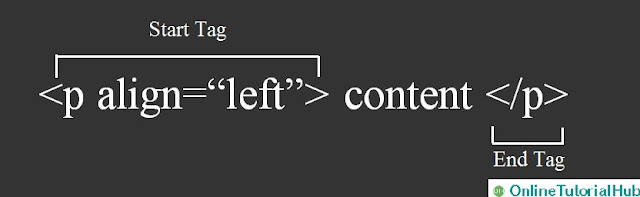
HTML tags are used to mark up the start and end of an HTML element. HTML tags are surrounded by the two characters < and >.These (< and >) characters are called angle brackets. A start tag consists of an opening angle bracket (<) followed by the element name, and a closing angle bracket (>). A start tag (<) is usually called opening tag and the end tag (>) is usually called closing tag. HTML tags are not case sensitive, <p> same as the <P>.
HTML tags consist three main parts –
  • Opening tag
  • Content
  • Closing tag
Onlinetutorialhub, HTML, HTML Tags

But some HTML tags are not closed tags. For example,
  • <br> : br tag is usually called break tag. br tag breaks the line of the code.
  • <hr> : hr tag is usually called horizontal rule. hr tag is used to put a line across the webpage.

Basic tags in HTML:-

Basic Tags are –
  • Heading tags
  • Paragraph tags
  • Line break tags etc.
1) Heading Tags:-
Any HTML document starts with a heading. A HTML h tag can be defined as a title or a subtitle. In HTML, we can use different sizes for headings. HTML has six different heading tags which are defined as <h1>, <h2>,<h3>, <h4>, <h5>, and <h6>. Size of the text depends on the number of heading. h1 is the largest heading tag and h6 is the smallest one.

Example -

<!DOCTYPE html>
<html>
<head>
<title>Heading Example</title>
</head>
<body>
<h1>This is heading 1</h1>
<h2>This is heading 2</h2>
<h3>This is heading 3</h3>
<h4>This is heading 4</h4>
<h5>This is heading 5</h5>
<h6>This is heading 6</h6>
</body>
</html>

This HTML document produce following output :

Onlinetutorialhub, HTML, HTML tags

2) Paragraph Tags:-
HTML paragraph or HTML p tag is used to define a paragraph in a webpage. The paragraph element begins with the HTML <p> tag and ends with the HTML </p> tag.
Note : Browser itself add an empty line before and after a paragraph.

Example

<!DOCTYPE html>
<html>
<head>
<title>Paragraph Example</title>
</head>
<body>
<p>First paragraph of HTML.</p>
<h2>Second paragraph of HTML.</h2>
<h3>Third paragraph of HTML.</h3>
</body>
</html>

This HTML document produce following output :

Onlinetutorialhub, HTML, HTML tags

3) Line Break Tags:-
The HTML <br> tag produces a line break in text. br tag is useful for writing a poem or an address, where the division of lines is necessary. br tag must have a start tag, and must not have an end tag. br tag is also known as empty tag. In HTML, we can use br tag two ways: <br> or <br/>. It is recommended to use <br/> tag because it is supported in HTML and XHTML both.

Example

<!DOCTYPE html>
<html>
<head>
<title>Line Break Example</title>
</head>
<body>
<p>If you want to break line</p>
in a paragraph,<br/>
use the br tag</p>
</body>
</html>

This HTML document produce following output :

Onlinetutorialhub, HTML, HTML tags


Wednesday, 15 November 2017

Python # 7 - Python Examples

- 1 comment

Python Examples:-
Python code straightforward and simple to run. Here is a basic Python code that will print "Welcome to Python".
Python examples are given below.
Example 1:
>>> a="Welcome To Python"
>>> print a

Output-
Welcome To Python

OnlineTutorialHub, OTH, Python, Python Examples

Explanation:
  • We are using IDLE to write the Python code. Detail clarification to run code in IDLE is given in my previous post (Execution of Python).
  • A variable is defined named "a" which holds "Welcome To Python".
  • "print" statement is used to print the content. subsequently "print a" statement will print the content of the variable. In this way, the output "Welcome To Python" is produced.
Python 3.6.2 Example-
In python 3x versions, you need to add parenthesis () in a string code to print it.

Example 2:
1)  Python program to add two numbers -

Code :
>>> num1 = 2.5
>>> num2 = 6.5
# Add two numbers
>>> sum = num1 + num2
# Display the sum
>>> print ( sum )

Output
9.0

OnlineTutorialHub, OTH, Python, Python Examples


2)  Python program to add two numbers -

Code :
# Store input numbers >>> num1 = input ('Enter first number: ')
>>> num2 = input ('Enter second number: ')
# Add two numbers
>>> sum = float (num1) + float (num2)
# Display the sum
>>> print ('Sum of {0} and {1} is {2}'.format (num1, num2, sum))

Output
Enter first number: 7.6
Enter second number: 3.5
The sum of 7.6 and 3.5 is 11.1

OnlineTutorialHub, OTH, Python, Python Examples
Explanation :
  • In this program, we requested that user to enter two numbers and this program displays the sum of two numbers entered by user.
  • We use the built-in function input() to take the input. input() returns a string, so we convert it into number using the float() function.


Sunday, 12 November 2017

Python # 6 - Execution of Python

- No comments

Execution of Python:-
After Python Installation and Environment Setup , the python interpreter lives in the installed directory.
By default it is /usr/local/bin/pythonX in Linux/Unix and C:\PythonX in Windows, where the 'X' denotes the version number.

There are three different ways to work in Python:
1) Interactive Mode::-
To invoke the Python interpreter in intermediate mode, we need to type “Python” in command line then we can directly enter “Python expressions” and press enter to get the output.

     >>>


“>>>” is the Python prompt. It denotes that Python interpreter is ready for input.
Example : Type 1 + 1 and press enter, We will get 2 as output.
To exit this mode type exit() or quit() and press enter.

OnlineTutorialHub, OTH, Python, Python Execution

2) Script Mode::-
This mode is used to run Python Scripts. And Scripts are nothing but simply written Python program in a file (notepad or notepad++ etc). Extension to save Python Scripts is “.py” i.e. the file having python program should be saved with “.py” then only it turns into Python Script and executable for script mode. We can save these scripts for future use.
For example: helloPython.py
We will write Python code in a separate file using any editor like notepad or notepad++ etc.

OnlineTutorialHub, OTH, Python, Python Execution

Save it by .py extension.

OnlineTutorialHub, OTH, Python, Python Execution

Here helloPython.py is ready to execute in Script Mode.
Now open Command prompt and execute it :
First we need to open command prompt and write directory/path/location where you have save this “.py” file and press enter.

OnlineTutorialHub, OTH, Python, Python Execution

Then write python helloPython.py at the command prompt.

OnlineTutorialHub, OTH, Python, Python Execution


OnlineTutorialHub, OTH, Python, Python Execution

3) Integrated Development Environment (IDE/IDLE):-
IDLE is a graphical user interface (GUI Software) that can be installed along with the Python programming language and is available from the official website .

IDLE provides useful features like code hinting, syntax highlighting and checking, file explorers etc. to the programmer/developer for application development.

By using an IDLE we can get rid of redundant tasks and significantly decrease the time required for application development, using an IDLE can make our life a lot easier.

Any Text Editing Software can be used to write a Python script file. We just need to save the file with the .py extension.

Click on Start button -> All Programs -> Python -> IDLE (Python GUI)

Console/Window opened by IDLE is called Python Shell/Python Prompt.

You can use both “Interactive” as well as “Script mode” in IDLE.

1) Using Interactive mode:
There is no need to save Python Code/Python Script in this mode of IDLE. We can directly write “Python Expressions” on Python Shell/Python Prompt and it will display result simultaneously when you hit enter key.

OnlineTutorialHub, OTH, Python, Python Execution

2) Using Script mode:
i)  Click on Start button -> All Programs -> Python -> IDLE (Python GUI)

ii)  Python Shell will be opened. Now click on File -> New Window.

A new Editor will be opened. Write your Python code here.

OnlineTutorialHub, OTH, Python, Python Execution

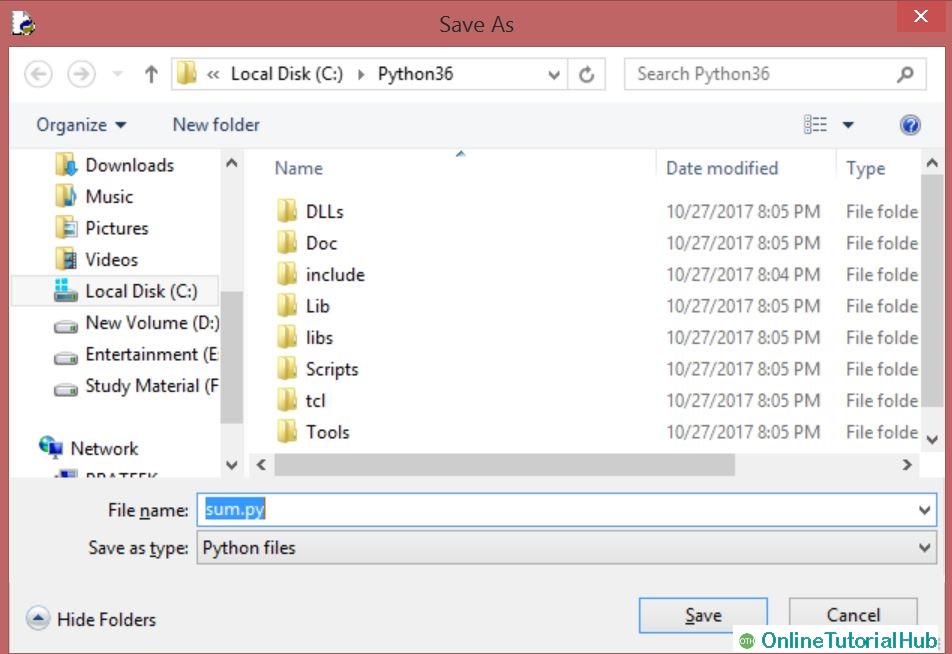
Click on file -> save as (sum.py)

OnlineTutorialHub, OTH, Python, Python Execution

Run then code by clicking on Run in the Menu bar.
Run -> Run Module

OnlineTutorialHub, OTH, Python, Python Execution

Result will be displayed on a new Python shell as:

OnlineTutorialHub, OTH, Python, Python Execution